
Add Guest Rooms
Modified on: 2025-08-25 16:45
Each Guest Room should be added and saved before their details, amenities and policies can be included.
Step 1. Go to the Guest Rooms category.

Step 2. On the Guest Room Table tab, click the Add button.

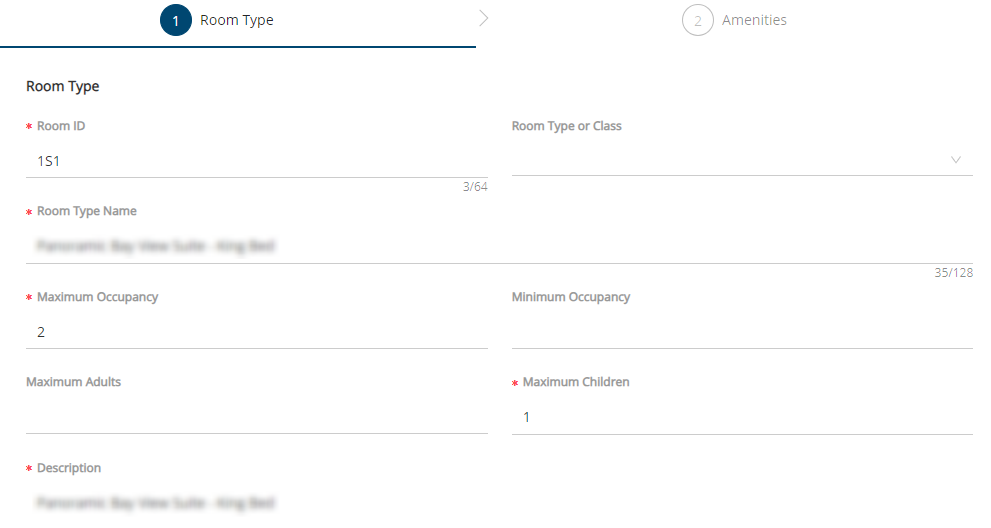
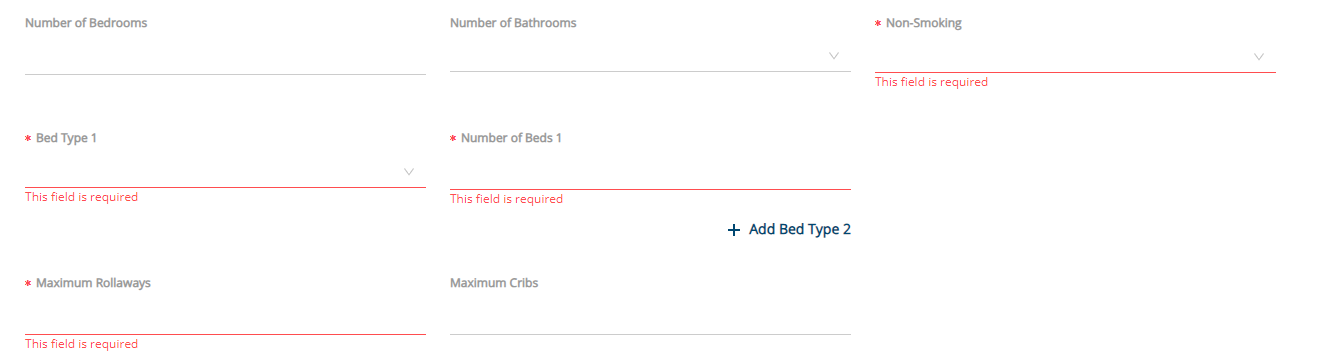
Step 3. Add the required room details from your system.
| Required Field | Description |
|---|---|
| Room ID | A string value representing the unique identification of a room. |
| Room Type Name | The name of the room type. |
| Maximum Occupancy | The maximum number of guests allowed. |
| Maximum Children | The maximum number of children allowed. |
| Description | Description information related to the room type. |
| Bed Type | Indicates the hotel bed type requested. |
| Number of Total Beds | The number of beds in this guest room. |
| Non-smoking | Choose YES or No |
| Maximum Rollaways | Maximum number of rollaway beds allowed in a room type. |
Step 4. Click the Save button.
Step 5. Click Next.

Step 6. Click Done.
Step 7. Repeat steps 2-6 until all rooms have been added.
Did you find it helpful? Yes No
Send feedbackSorry we couldn't be helpful. Help us improve this article with your feedback.