
Add Rooms
Modified on: 2026-09-08 16:13
Each Guest Room should be added and saved before their details, amenities and policies can be included.
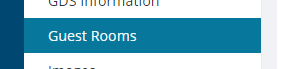
Step 1. Go to the Guest Rooms category.
Step 2. On the Guest Room Table tab, click the Add button.

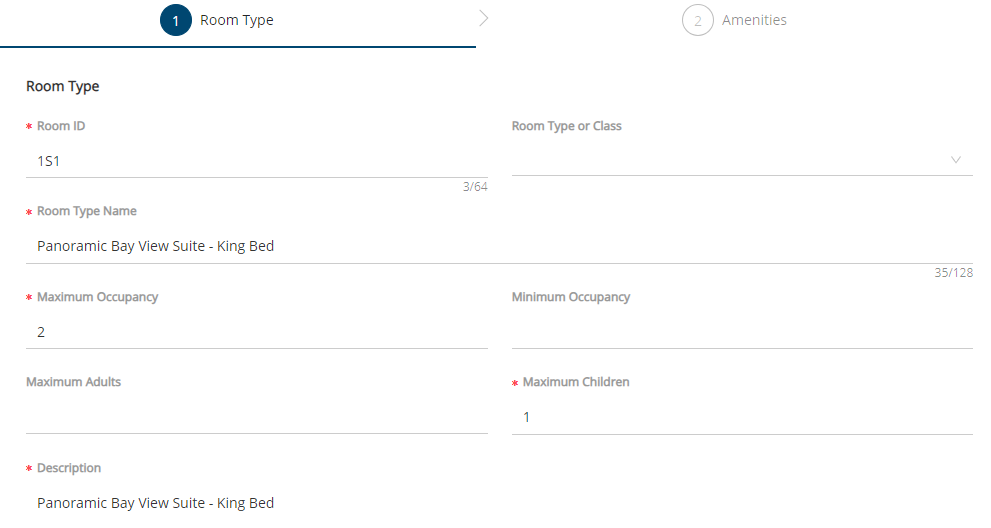
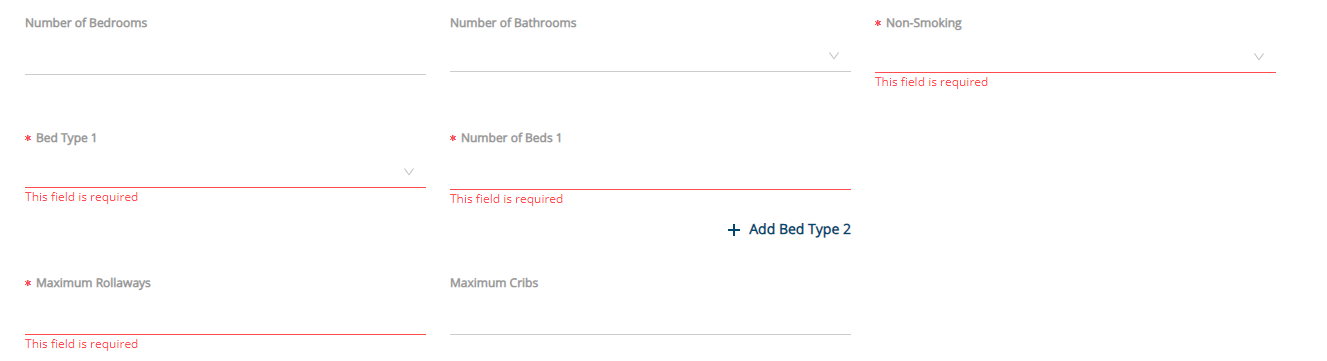
Step 3. Add the required room details.
| Required Field | Description |
|---|---|
| Room ID | A string value representing the unique identification of a room. |
| Room Type Name | The name of the room type (e.g., Deluxe King, Standard Twin). |
| Maximum Occupancy | The maximum number of guests allowed. |
| Maximum Children | The maximum number of children permitted. |
| Description | A required field providing a short description of the room. |
| Bed Type 1 | Fill in the bed type |
| Number of Total Beds | The number of beds in this guest room. |
| Non-smoking | Select Yes or No. |
| Maximum Rollaways | Maximum number of rollaway beds allowed in a room type. |
Step 4. Click the Save button.
Step 5. Add Amenities.
Use this section to list all amenities in the room. You can select whether the amenity is a general amenity, accessible or security and whether or not it is included in the rate or there’s a fee (eg. Mini-bar items).
If you don’t want to add amenities, you could click Next.
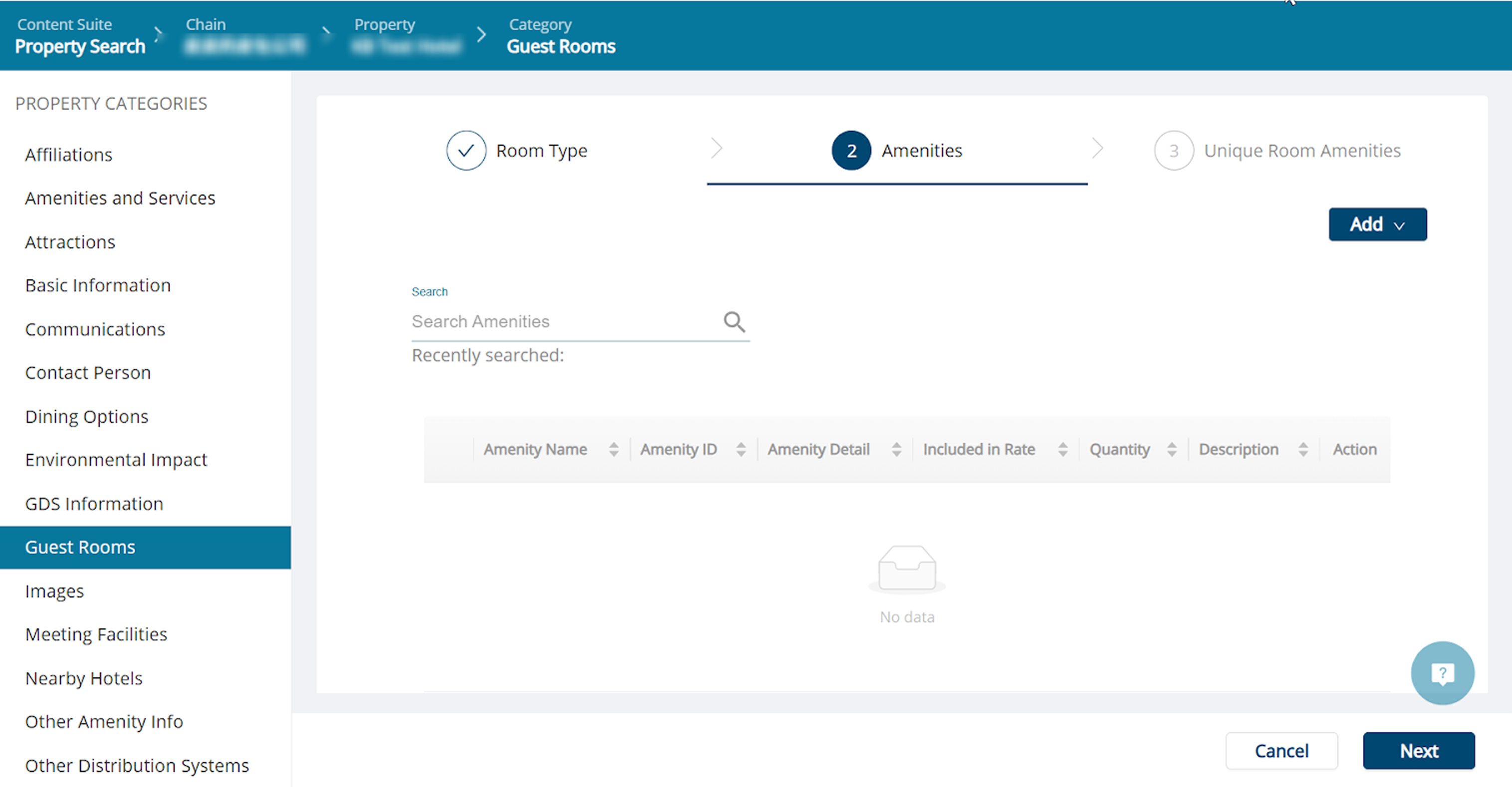
Step 6. Add Unique Room Amenities.
If you don’t want to add unique room amentities, please click Done.
Step 7. To view guest rooms details, please click the Room Type Name column.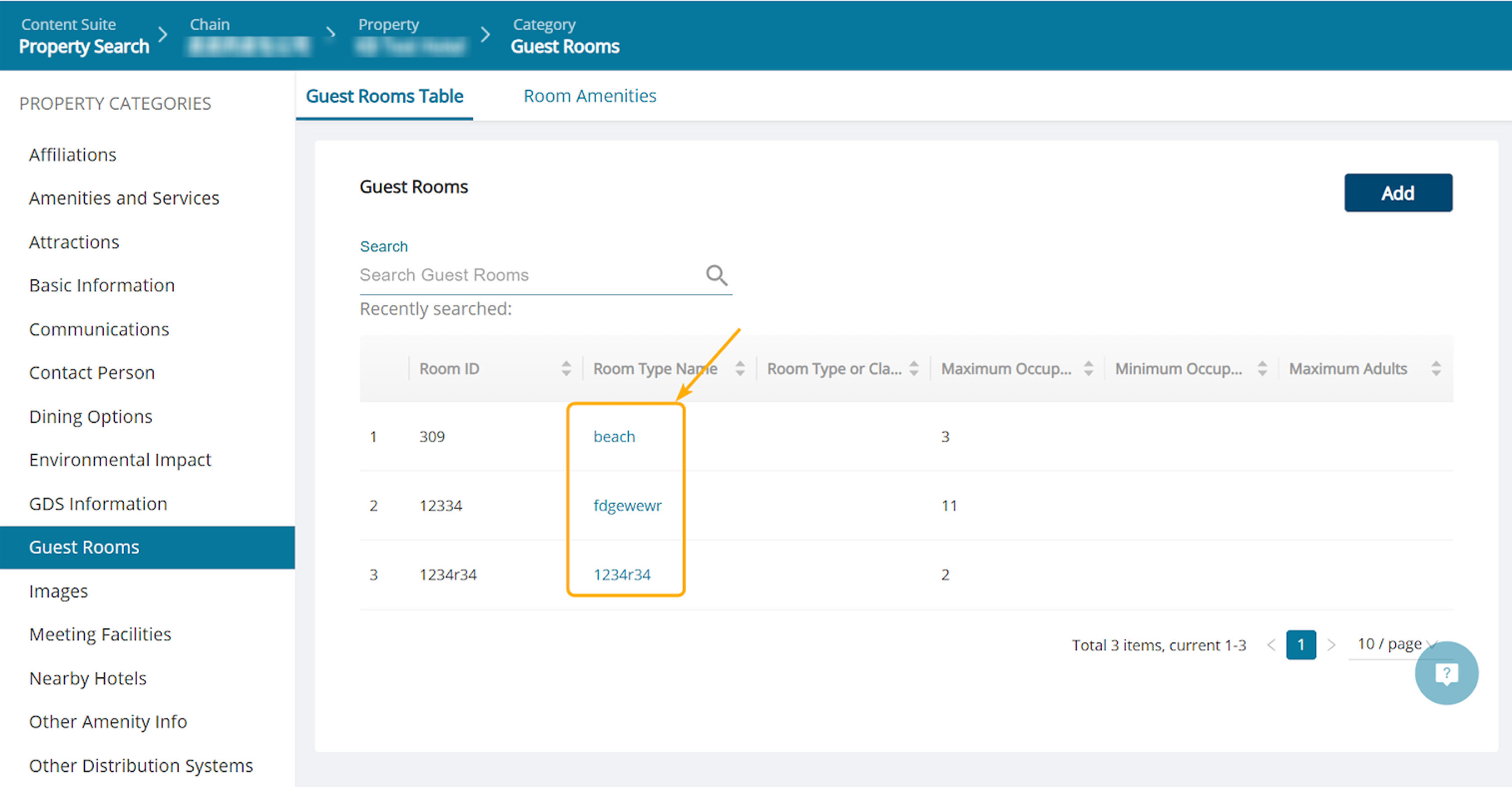
Did you find it helpful? Yes No
Send feedbackSorry we couldn't be helpful. Help us improve this article with your feedback.